

I have used WhatsApp every day for years, and I still find settings I never knew existed. That is not a criticism of the app — it is just very full. Behind the chat list and the send button there is a long list of small, genuinely useful features that WhatsApp has added quietly over the years, and most people never open the menu where they live.
The good news is that every feature in this guide is official, built into the WhatsApp you already have, and free. You do not need a modded version of WhatsApp, a third-party app, or any kind of trick — and I would advise against all three, because unofficial WhatsApp versions can get your number banned and your chats stolen. Everything here works in the normal app from the Play Store, on any ordinary Android phone.
Quick Facts
- Every feature in this guide is built into the official WhatsApp app. Nothing here needs a modded version, a paid upgrade, or an extra app.
- Disappearing messages can delete chats after 24 hours, 7 days or 90 days — you choose the timer, and you can set it as the default for all new chats.
- You can send a photo or voice note as “View Once”, so it disappears after it has been opened and cannot be replayed or forwarded.
- Chat Lock hides a conversation behind your fingerprint or PIN, and a secret code can hide the locked folder itself from your chat list.
- You can use one WhatsApp account on up to four linked devices, and your phone does not need to stay online for them to work.
1. Message Yourself — Your Own Private Notes Chat
The simplest hidden feature is also the one I use most. WhatsApp lets you send messages to yourself, which turns it into a quick notes app that syncs across your devices.
Tap New chat (the message icon at the bottom), and at the top of your contacts you will see your own name with “Message yourself” underneath. Tap it and you have a private chat with yourself. I use it for shopping lists, links I want to read later, and reminders. Type it, send it, and it is there on every device where WhatsApp is open.
It is faster than opening a separate notes app, and because it is just a chat, you can star important messages in it and search it. If you cannot see “Message yourself” in the list, update WhatsApp from the Play Store — it has been in the app since late 2022.
2. Disappearing Messages — Chats That Clean Up After Themselves
Not every chat needs to live forever. Disappearing messages delete new messages in a chat automatically after a set time, which keeps group chats tidy and stops old conversations piling up.
To turn it on for one chat, open the chat, tap the contact or group name at the top, tap Disappearing messages, and choose 24 hours, 7 days or 90 days. To make it the default for every new chat you start, go to Settings > Privacy > Default message timer and pick the same options.
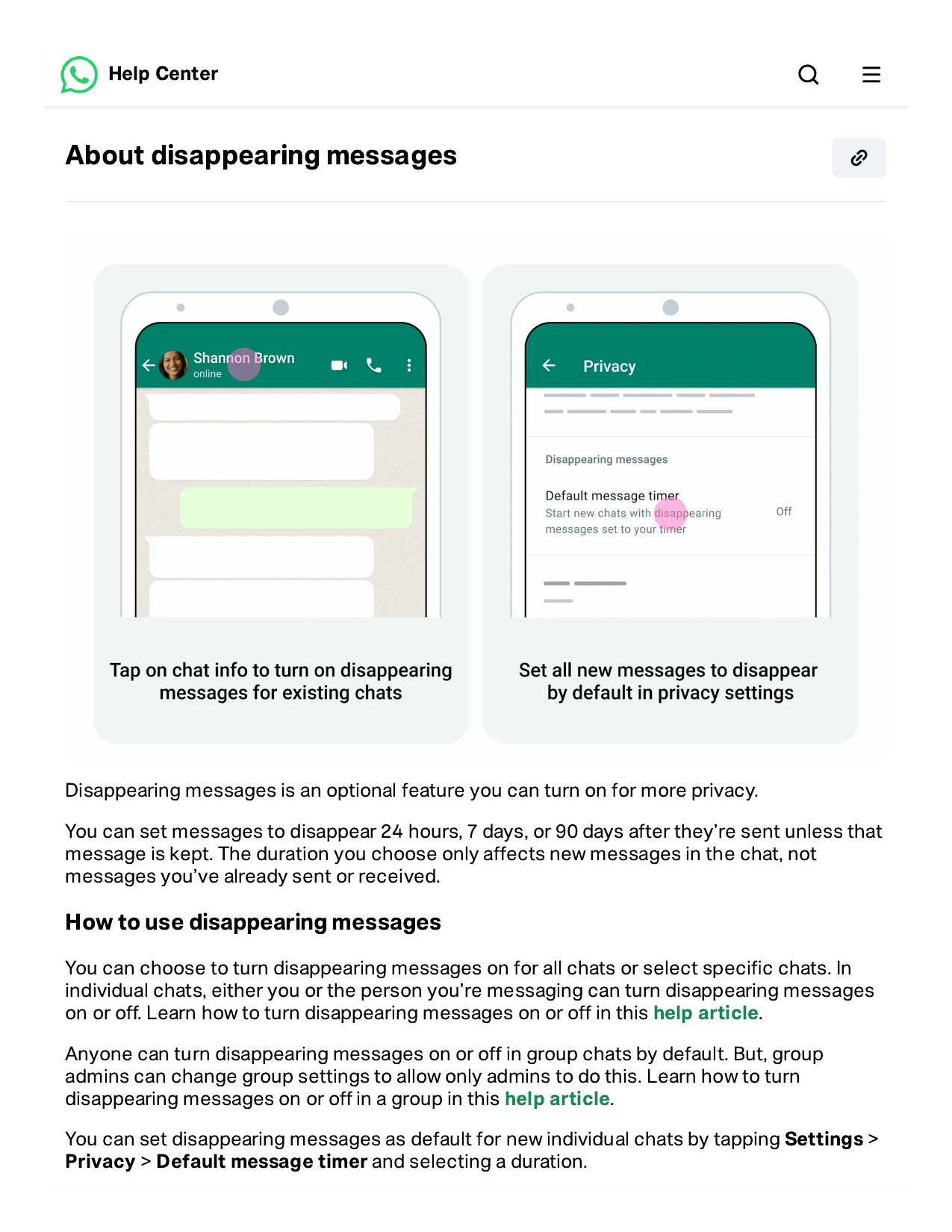
Two honest notes. First, the timer only applies to messages sent after you turn it on — your old messages stay. Second, disappearing messages are not a privacy guarantee: the other person can still screenshot or copy a message before it disappears. Think of it as tidiness, not secrecy. For full account safety, read our guide on How to Protect Your WhatsApp From Hackers: 8 Settings.
3. View Once — Photos and Voice Notes That Can’t Be Replayed
Sometimes you want to send a photo that the other person sees once and never again — a password on a piece of paper, a concert ticket, or a quick photo of something you do not want saved. That is what View Once is for.
When you attach a photo or video, tap the “1” icon that appears next to the caption box before you send. The photo goes through as View Once: the other person can open it once, and after that it is gone. They cannot forward it, save it, or open it a second time. The same works for voice messages — record one, and tap the “1” icon before sending.
One warning: View Once does not stop screenshots in every situation, and WhatsApp now blocks screenshots of View Once photos on most Android phones — but that protection is not perfect on every device. Do not send anything with View Once that would be a disaster if the other person photographed their screen.
4. Lock a Chat — and Hide It With a Secret Code
If someone else sometimes holds your phone — a child, a colleague, a curious relative — Chat Lock is the feature you want. It moves a chat into a locked folder that only opens with your fingerprint, face or PIN.
Long-press the chat you want to lock, tap the three-dot menu, and tap Lock chat. The chat disappears from your main list into a Locked chats folder at the top. Notifications from locked chats show no preview, just “WhatsApp: 1 new message”.
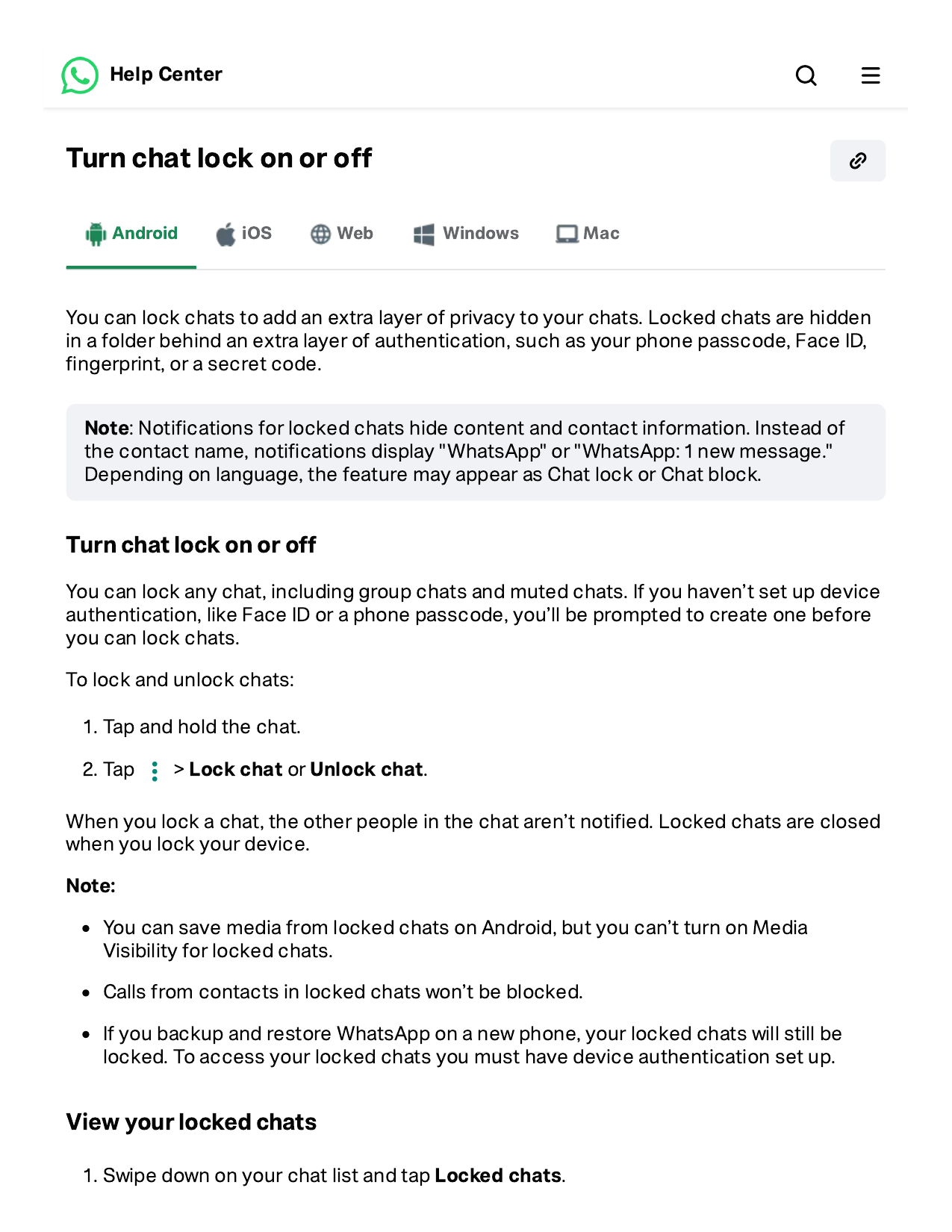
Then there is the extra step most people miss: you can hide the Locked chats folder itself. Open the folder, tap Settings, turn on Hide locked chats, and set a secret code — a word you will remember. Now the folder is invisible until you type that code into the search bar. Do not forget the code: if you do, you will need to clear the locked chats from WhatsApp’s settings to get them back.
5. Edit a Sent Message (You Have 15 Minutes)
We have all sent a message with a wrong time, a wrong name or a terrible typo. WhatsApp now lets you fix it — but only within 15 minutes of sending.
Long-press the message you sent, tap the three-dot menu, and tap Edit. Change the text and tap the tick. The message updates for everyone in the chat, and it shows a small “Edited” label, so people know you changed it. There is no limit on how many times you can edit within those 15 minutes, but after the window closes the option disappears for good.
If you are past 15 minutes, your only option is Delete for everyone, which works for about two days after sending. Both are honest fixes; neither lets you secretly rewrite history.
6. Send Photos and Videos in HD
For years WhatsApp compressed every photo you sent, and people blamed their camera when the photo arrived looking soft. You can now send photos and videos in HD quality — the option is just not where most people look.
Attach a photo or video as usual, then tap the HD button at the top of the preview screen before you send. Choose HD quality and send. The photo keeps much more detail, and it is still noticeably smaller than the original file on your phone.
Two practical notes. HD photos use more mobile data, so use it on Wi-Fi when you can. And if you send a lot of HD media, set it as the default: go to Settings > Storage and data > Media upload quality and choose HD quality. Your phone still keeps the full original in your gallery — WhatsApp only changes what it sends.
7. Polls — Settle the Group Argument in One Tap
Every family or friends group has the same problem: ten people, one question (“Where are we eating on Friday?”), and forty messages of chaos. Polls fix it in one tap.
Open the group, tap the attach (paperclip) icon, and tap Poll. Type your question, add up to 12 options, and choose whether people can pick more than one answer. Send it, and everyone votes by tapping. You can see who voted for what by tapping View votes at the bottom of the poll.
It works for anything a group needs to decide — a date, a restaurant, a film, a gift. It is also the fastest way to end a debate that has been running for three days: put the options in a poll and let the votes speak.
8. Pin, Star and Filter — Find Things in Seconds
Three small features, one job: finding things without scrolling for five minutes.
Pin chats: long-press any chat and tap the pin icon at the top. It stays at the top of your list, above everything else. You can pin up to three chats.
Star messages: long-press any message and tap the star icon. It saves that message to a list you can open any time from the contact or group name, under Starred messages. I star addresses, booking references, and anything I know I will be asked for again.
Chat filters: at the top of your chat list you will see small filter buttons — All, Unread and Groups. Tap Unread and you see only the chats you have not opened yet. Tap Groups and every one-to-one chat disappears. It is the fastest way to clear a backlog of unread messages, and most people scroll straight past it.
9. Use WhatsApp on Four Devices at Once
You no longer need your phone in your hand to use WhatsApp on your computer or tablet. One account can be linked to up to four other devices, and they keep working even if your phone is switched off or out of battery.
On your phone, go to Settings > Linked devices > Link a device, then scan the QR code shown on the other device’s WhatsApp (on a computer, open web.whatsapp.com). The device links in a few seconds, and your chats sync over.
This is genuinely useful, and it is also the feature to check if anything ever feels wrong with your account. If you ever see a device in the Linked devices list that you do not recognise, tap it and choose Log out immediately, then change your account security settings. If you are moving to a new phone entirely, the transfer is a different process — see our guide on How to Transfer Everything to a New Android Phone Safely.
What These Features Won’t Do
A quick honest note, because WhatsApp advice online is full of over-promising. None of these features make your chats invisible to WhatsApp itself, and none of them replace good habits. Disappearing messages do not stop screenshots, and View Once does not stop someone photographing their screen. No feature in the official app will let you read other people’s messages, see who viewed your profile, or find out who blocked you — any app or website claiming to do that is a scam, and the modded WhatsApp versions that promise it can steal your account. The official features above are the real ones. They are enough.
FAQ
Q1: Are these WhatsApp features free?
Yes, all of them. Every feature in this guide is part of the official WhatsApp app, which is free. There is no paid version of WhatsApp with extra features, and any app charging you for “WhatsApp Pro” or “WhatsApp Plus” features is not official — avoid it.
Q2: Do hidden features like Disappearing Messages work on both Android and iPhone?
Most of them do, with small differences in where the setting lives. Chat Lock, View Once, polls, message editing and linked devices all work on both. A few options, like HD media quality defaults, may be named slightly differently on iPhone, but the features themselves are the same.
Q3: Will the other person know if I use Disappearing Messages or View Once?
Yes, and that is by design. When you turn on disappearing messages, a notice appears in the chat. View Once photos show a small “Opened” label after they are viewed. Chat Lock is the only feature that is private to you — nobody else can see that you locked a chat, and locked chats do not appear on their phone at all.
Bottom Line
WhatsApp is much more than a chat list, but it does a poor job of telling you so. Of the nine features in this guide, start with the three that save you time every day: message yourself for quick notes, pin your three most important chats, and star the messages you know you will need again. Then turn on the privacy ones that fit your life — disappearing messages for the chats that do not need a permanent record, and Chat Lock for anything you would rather keep behind your fingerprint. They are all built in, all free, and all in the app you already have. The only cost is two minutes spent looking in the right menu.

About HappyDroid
HappyDroid is a small independent blog that tests Android phones, apps and settings in plain language, so you can make confident choices without the hype. We never promote modded or cracked apps, and we only link to official sources like the Google Play Store and developers’ own websites.