
My phone used to die by dinner. Not because the battery was broken — it was fine — but because I had never actually looked at the battery settings, and because I had installed a “battery saver” app that promised to fix everything and did almost nothing. I spent a week testing both sides properly: the battery tools already built into Android, and the most popular battery apps on the Play Store. The result surprised me, and it will probably save you both battery and storage.
Here is the short version. The settings already on your phone do almost all of the real work, and they do it for free. Most battery apps can only do the same things your phone already does — or worse, they run constantly in the background and use battery themselves. There are a couple of exceptions, and I will name them, but for most people the honest answer is: learn the built-in settings, skip the app.
Quick Facts
- Android’s built-in Battery Saver can stretch a low battery by several hours by limiting background activity, lowering brightness and turning off vibration.
- Adaptive Battery learns which apps you actually use and quietly limits the ones you rarely open — it is already on by default on most Android phones.
- Most “battery saver” apps cannot do anything your phone cannot already do, and the ones that run all day in the background can drain battery instead of saving it.
- The biggest real battery drains are the screen, mobile data in weak signal areas, and a handful of apps running in the background — not “junk files” or “RAM”.
- Turning on Battery Saver at 20% instead of waiting for 5% can add hours of usable phone time on a bad day.
The Built-In Tools: What Your Phone Already Has
Before you download anything, it is worth knowing what is already sitting in your Settings menu. Every modern Android phone has at least three battery tools built in, and they are the ones Google and the phone makers actually designed for the job.
Battery Saver is the big one. Go to Settings > Battery > Battery Saver and turn it on. It dims the screen slightly, limits background syncing, turns off vibration and location when the screen is off, and stops apps refreshing in the background. On most phones you can set it to switch on automatically at 20% or 15% battery — I keep mine at 20%, because by the time you hit 5% it is usually too late to matter.
Adaptive Battery is quieter but more useful day to day. Go to Settings > Battery > Adaptive preferences (on Samsung phones it is under Settings > Battery and device care > Battery > Background usage limits) and make sure Adaptive Battery is on. It watches which apps you open and when, and quietly restricts the ones you rarely use, so they stop waking your phone up for no reason. It takes a week or two to learn your habits, so give it time before judging it.
Battery usage stats are the detective tool. In Settings > Battery, tap Battery usage and you will see exactly which apps used the most battery in the last 24 hours. This is the screen that tells you the truth about your phone — no guessing, no app needed. If one app is using 30% of your battery, that app is the problem, not your battery. Our guide on Which App Is Draining Your Battery walks through reading this screen in detail.
The Best Built-In Settings to Change Today
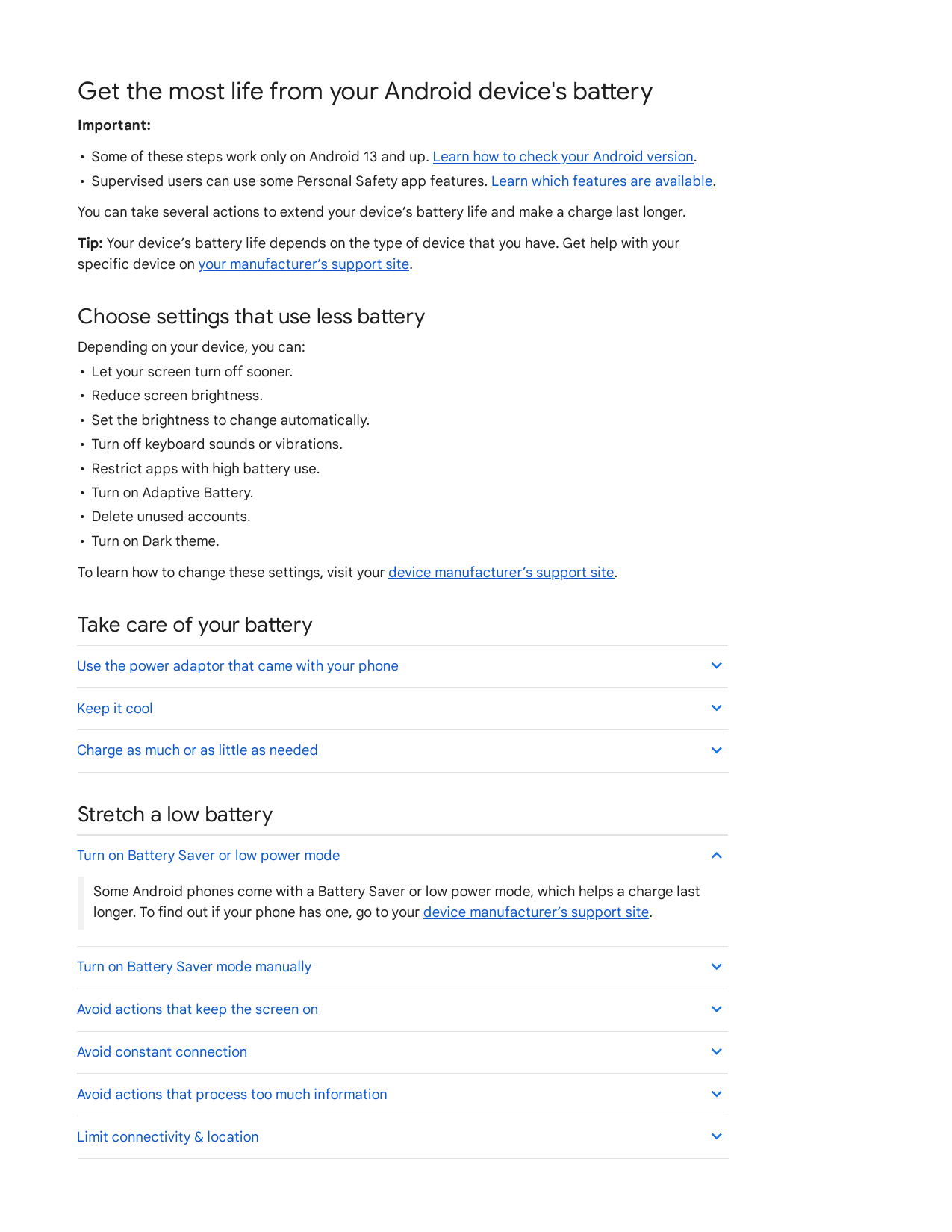
You do not need to change everything. These five settings are the ones that made a real, noticeable difference when I tested them on my own phone over a week.
- Set Battery Saver to switch on automatically at 20%. Open Settings > Battery > Battery Saver, tap Set a schedule, and choose Based on percentage, then set it to 20%. This is the single easiest change. On a long day out, it quietly kicks in before you are in trouble, and you will barely notice it running — the screen is a little dimmer and background apps update less often. Turn it off when you charge.
- Make sure Adaptive Battery is on. It is on by default on most phones, but it is worth checking: Settings > Battery > Adaptive preferences > Adaptive Battery. If it is off, turn it on and leave it alone for two weeks. This is the setting that does the most work with the least effort from you, because it learns your routine instead of asking you to manage it.
- Turn on Dark Mode — if your phone has an OLED screen. On phones with OLED or AMOLED screens, dark mode genuinely saves battery, because black pixels on those screens are simply switched off. Go to Settings > Display > Dark theme and turn it on. On phones with LCD screens it makes almost no difference to battery, though it is easier on the eyes at night. If you are not sure which screen you have, most Samsung, Pixel and higher-end phones are OLED; budget phones are often LCD. Either way, it costs nothing to try.
- Shorten your screen timeout to 30 seconds. Your screen is the biggest battery drain on any phone, and it stays on longer than you think. Go to Settings > Display > Screen timeout and set it to 30 seconds. Every extra minute your screen stays lit while the phone sits on a table is battery you will never get back. This one change alone was worth more than any battery app I tested.
- Restrict the worst background apps yourself. Go to Settings > Battery > Battery usage, find the app that uses the most battery, tap it, and set its background usage to Restricted. Be careful with messaging apps and email — restricting WhatsApp or Gmail means messages may arrive late. But games, shopping apps and social media apps you open twice a week do not need to run in the background at all, and restricting them is free battery.
Battery Apps: What They Actually Do
So what about the battery apps? I installed the most popular ones on the Play Store and watched what they did for a week. Here is the honest picture.
Most battery apps do three things: they show you a battery percentage and a time estimate, they offer a one-tap “optimise” button, and they show you which apps are using battery. The first two are things your phone already shows you in Settings. The “optimise” button usually does the same thing as turning on Battery Saver and closing background apps — which you can do yourself in two taps. And the battery usage list is a copy of the one in Settings > Battery.
The problem is the cost. To show you all of this, the app has to run in the background all day, checking your battery every few minutes. Some of them also show ads, which use data and battery of their own. A few ask for permissions they do not need, like access to your files or your location. When I compared a week with a battery app installed against a week without one, the phone with the app actually lost battery slightly faster — not because the app was malicious, but because it was doing the same job twice, once for itself and once for the phone.
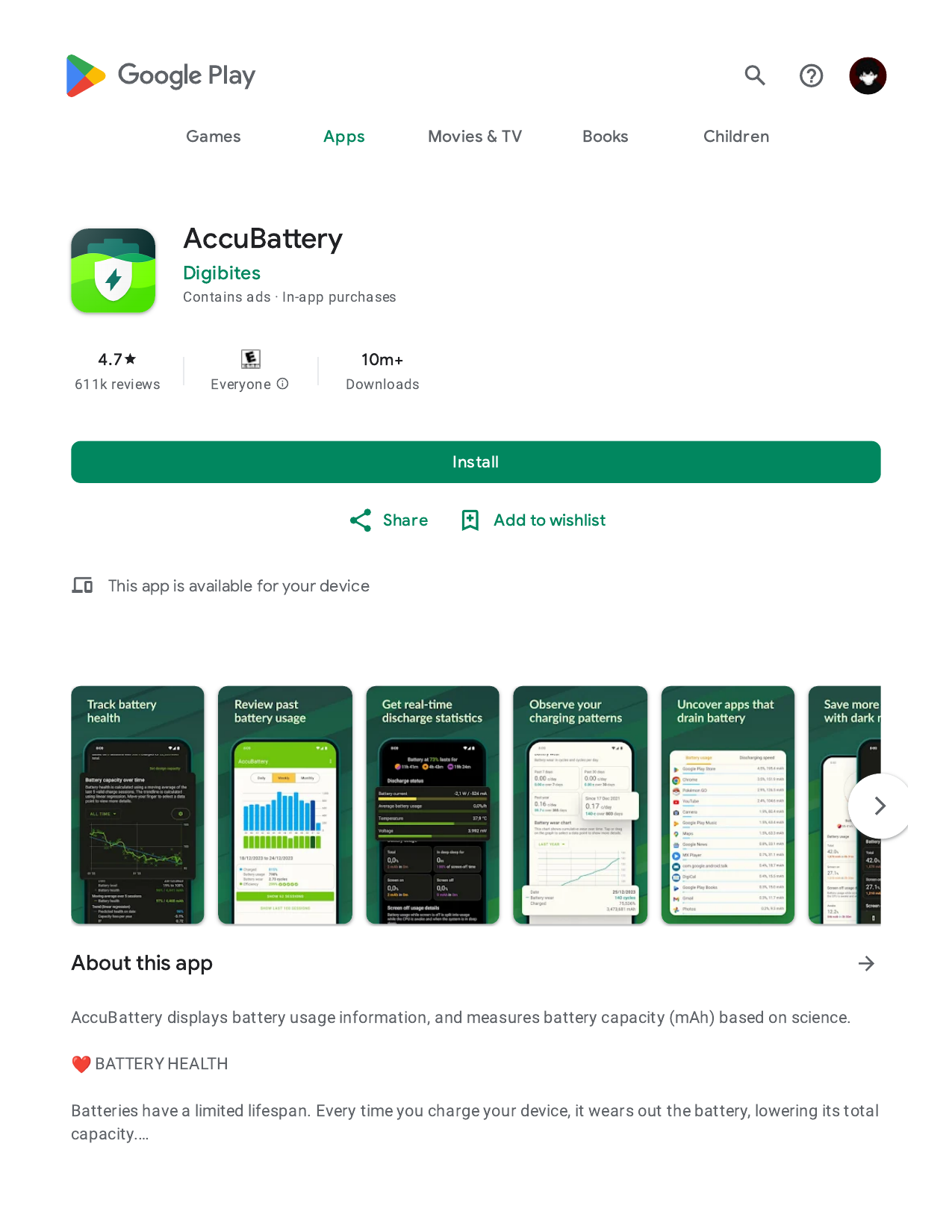
There are two narrow exceptions worth naming. AccuBattery is genuinely useful if you want to know the real health of your battery — it measures charge cycles and estimates how much capacity your battery has lost, which Android does not show you directly. It is a measuring tool, not a saver, and that is an honest job. And some phone makers’ own battery apps (like Samsung’s Device Care) are really just a nicer front end for the built-in settings, so they are harmless. But the generic “Battery Saver & Booster” apps with the lightning-bolt icon and the promise of “200% more battery”? They cannot do what they promise. Android simply does not let a third-party app control the battery that way.
Built-In vs Battery Apps: The Honest Comparison
Here is the comparison in plain terms, after a week of testing both on the same phone, with the same apps and the same daily routine.
| What you want | Built-in settings | Battery app |
|---|---|---|
| Save battery when low | Battery Saver — works, free, instant | Usually just turns Battery Saver on for you |
| Stop apps draining battery in background | Adaptive Battery + manual restriction | Same thing, with an extra app running |
| See which app drains most | Settings > Battery usage — accurate | A copy of the same list |
| Know your battery’s real health | Not shown by Android | AccuBattery measures it well |
| One-tap “optimise” | Battery Saver + close apps yourself | Same result, plus ads and background use |
| Cost | Free, already on your phone | Free with ads, or paid, plus battery cost |
The built-in side wins on almost every row. The only row where an app wins is measuring battery health, and even there you only need it once every few months, not running every day.
The Settings That Don’t Help (Despite What Apps Claim)
Battery apps love to promise things that sound impressive and do nothing. Here are the claims I would ignore.
“RAM boosters” and “junk cleaners” do not save battery. Clearing RAM makes Android reload apps from scratch, which uses more battery, not less. Android manages memory itself and is better at it than any app. “Junk files” are mostly cached data that makes your apps open faster; deleting them just means your phone downloads them again.
“CPU coolers” are a myth. No app can cool your phone’s processor. If your phone is hot, it is because an app is working hard or the phone is charging in the sun — close the app, move the phone out of the heat, and let it cool on its own. Our guide on Android phone overheating covers the real causes.
“Fast charging boosters” cannot change physics. Charging speed is decided by your charger, your cable and your phone’s hardware. An app cannot make your phone charge faster, and any app claiming to is selling you a placebo screen.
What To Do If Your Battery Is Still Bad
If you have done everything above and your phone still dies by mid-afternoon, the problem is probably not your settings. Check your battery’s actual health first — our guide on How to Check Battery Health on Android shows you how to read the real numbers, including with AccuBattery.
If the battery has lost a lot of its original capacity (usually after two or three years of daily charging), no setting and no app will bring it back. Your options are a battery replacement at a repair shop, which is often much cheaper than a new phone, or accepting that it is time to upgrade. And if one app is responsible for most of the drain, try updating it, clearing its cache, or replacing it with a lighter alternative — sometimes the app itself is the problem, not your phone.
FAQ
Should I use a battery saver app at all?
For most people, no. The built-in Battery Saver and Adaptive Battery do the same job better, for free, without running an extra app in the background. The one exception is a measurement app like AccuBattery if you want to check your battery’s health — use it for a few days, then uninstall it.
Does Battery Saver damage my phone or my battery?
No. Battery Saver only limits background activity, screen brightness and vibration while it is on. It does not harm the battery or the phone. The only downside is that some apps update less often while it is running, so messages or emails may arrive a few minutes later than usual.
Why does my phone still drain battery overnight?
A small overnight drain of 2–5% is normal — your phone checks for messages and updates while you sleep. If it loses 15% or more overnight, an app is misbehaving: check Settings > Battery > Battery usage in the morning, find the app at the top, and restrict its background use. Turning on Battery Saver before bed also helps.
Bottom Line
After a week of testing both sides, my honest verdict is simple: learn the five built-in settings in this guide and skip the battery app. Set Battery Saver to switch on at 20%, leave Adaptive Battery on, shorten your screen timeout, and restrict the worst background apps yourself. That is the whole system, it is already on your phone, and it costs nothing. If you are curious about your battery’s real health, install AccuBattery, measure it for a few days, and then uninstall it — that is the only job a battery app is genuinely good at. Everything else is a copy of what your phone already does, with ads on top.
About HappyDroid
HappyDroid is a small independent blog that tests Android phones, apps and settings in plain language, so you can make confident choices without the hype. We never promote modded or cracked apps, and we only link to official sources like the Google Play Store and developers’ own websites.