
I only paid proper attention to Google Play Protect the day it stopped me installing an app a friend had sent me as a file. A warning popped up, the install was blocked, and I was annoyed for about ten seconds — until I checked the app and found other people reporting it as adware. That is Play Protect doing its job: quietly checking the apps on your phone so you do not have to think about it.
The good news is that it is already on your phone. It comes built into every Android phone with the Google Play Store, it costs nothing, and it needs almost no setup. The catch is that many people have never opened it, so they do not know whether it is switched on, what it has found, or what it cannot protect them from. Here is how to use it properly.
Quick Facts
- Google Play Protect is built into every Android phone with the Google Play Store. You do not install it and you do not pay for it.
- It scans apps before you install them, scans the apps already on your phone every day, and can disable or remove apps it finds harmful.
- It also checks apps installed from outside the Play Store, such as APK files sent by a friend or downloaded from a website.
- A manual scan takes a few seconds and shows you exactly when your phone was last checked.
- Play Protect is a real layer of protection, but it is not a guarantee — it can miss brand-new threats, and it cannot fix careless taps.
What Google Play Protect Actually Does
Play Protect is Google’s built-in security scanner for Android. It works in three ways.
First, it checks every app in the Play Store before it is published, and it checks the app again on your phone when you install it. If something looks harmful, the install is blocked or you get a warning before it finishes.
Second, it scans the apps already installed on your phone every day in the background. If an app starts behaving badly after an update — sending data it should not, or showing ads outside the app — Play Protect can warn you, disable the app, or remove it.
Third, it watches apps installed from outside the Play Store. If you install an APK file from a website or a messaging app, Play Protect scans it too and can block the install if it recognises the file as harmful.
All of this happens quietly. Most days you will never see it. That is normal — no news from Play Protect is good news.
How to Check Play Protect Is Switched On
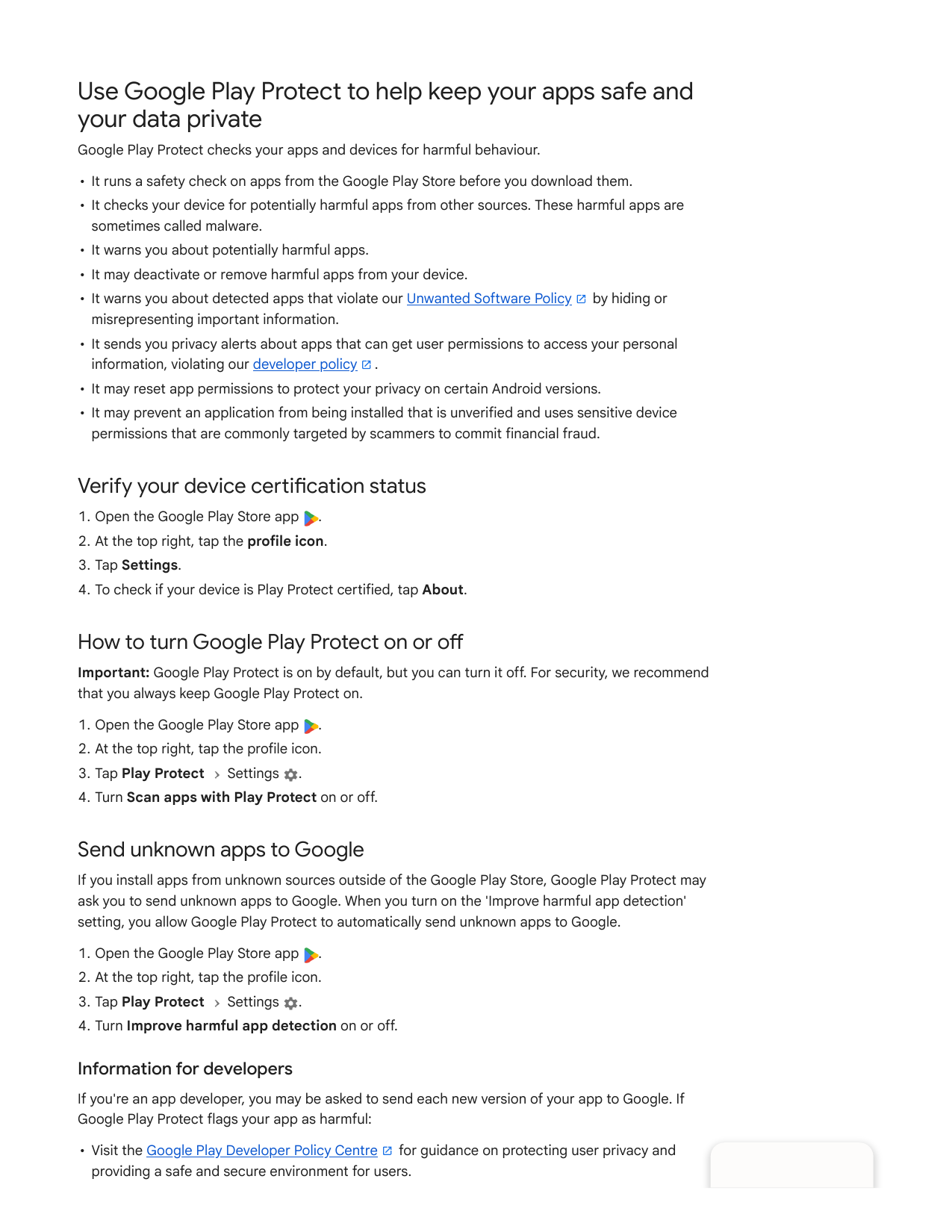
It is usually on by default, but it is worth checking, because some phones arrive with it off, and some “phone cleaner” apps turn security settings off without telling you.
- Open the Google Play Store app.
- Tap your profile picture in the top-right corner.
- Tap Play Protect.
- Tap the gear (settings) icon in the top-right corner.
- Make sure “Scan apps with Play Protect” is switched on.
On that same settings screen you will see a second option, “Improve harmful app detection”. This sends unknown apps to Google for a deeper check. I leave it on — it helps Google catch new threats faster, and it only shares the app itself, not your personal files. If that makes you uncomfortable, you can leave it off; the main scan still works.
While you are on the Play Protect screen, look at the line under the shield icon. It tells you when your phone was last scanned. If it says “No harmful apps found” with today’s date, everything is working as it should.
How to Run a Manual Scan
You do not need to run manual scans every day — the daily automatic scan covers that. But run one yourself in these moments: after installing an app from outside the Play Store, after lending your phone to someone, or if your phone starts acting strangely.
- Open the Google Play Store and tap your profile picture.
- Tap Play Protect.
- Tap Scan. The scan takes a few seconds.
- When it finishes, you will see “No harmful apps found” — or a warning if something was detected.
You can also tap “Recent scan results” or scroll the Play Protect screen to see which apps were checked most recently. If a scan ever looks old — more than a day or two — check that the setting from the previous section is still switched on, and make sure your phone has an internet connection, since the scan checks against Google’s latest threat list.
What Happens When Play Protect Finds Something
If Play Protect finds a harmful app, it does not just leave a note and walk away. Depending on how serious the threat is, you will see one of these:
- A warning before install: when you try to install a flagged app, a full-screen warning appears explaining the risk. For the most dangerous apps there is no “install anyway” button at all — the install is simply blocked.
- A warning about an installed app: if an app already on your phone turns harmful, Play Protect shows a notification. Open it and you will get the option to uninstall the app.
- Automatic removal: in serious cases, Play Protect disables or removes the app on its own and then tells you what it did. If it does this, do not reinstall the app from the same source.
One honest note: Play Protect sometimes flags a harmless app by mistake, usually a small app from an unknown developer. If you are sure an app is safe — you know the developer, you got it from the official website — you can choose to keep it. But if you have any doubt, uninstall it. No app is worth the risk.
Play Protect and Apps From Outside the Play Store
This is where most Android infections actually come from. An app from the Play Store has been checked by Google before you ever see it. An APK file from a random website, a Telegram group or a forwarded message has not.
Play Protect does scan these sideloaded apps when the setting is on, and it will block the worst ones. But scanning a file after you downloaded it is a second line of defence, not a first one. The first line is not installing it at all.
My rule is simple: if an app is not on the Play Store and not from the developer’s own official website, I do not install it. If you want to know how to tell a fake APK from a real one before you tap install, read our guide on How to Spot a Fake or Malicious APK.
What Play Protect Cannot Do
Play Protect is good, but it is not magic, and anyone who tells you it makes your phone unhackable is selling something. Here are its honest limits:
- It can miss brand-new malware. A threat that appeared an hour ago may not be in Google’s list yet. This is the same limit every antivirus has.
- It does not stop phishing. A fake bank message or a scam link in an SMS can still trick you into handing over a password. Play Protect checks apps, not your judgement.
- It does not clean up a phone that is already deeply infected. If you suspect your phone already has a virus, a scan is only the first step — follow the full clean-up steps in our guide on How to Check If Your Phone Has a Virus (And Remove It Safely).
- It does not replace updates. An old Android version with unpatched security holes is vulnerable no matter what scanner you run. Keep your system and your apps updated.
Understanding these limits matters more than the scan itself. Play Protect is one layer of a safe phone — the other layers are where you get your apps, which links you tap, and keeping your phone updated.
5 Habits That Make Play Protect Work Better
- Keep it switched on. Check the setting once a month, especially after installing a cleaner or battery app, which sometimes changes security settings.
- Run a manual scan after sideloading anything. If you installed an APK from outside the Play Store, open Play Protect and tap Scan straight after.
- Keep the Play Store and your system updated. Play Protect itself updates through the Play Store, and security patches come with system updates. Both matter.
- Check permissions when you install a new app. A torch app does not need your contacts. If an app asks for permissions that make no sense, that is a warning sign even if Play Protect stays quiet.
- Do not ignore its warnings. If Play Protect flags an app, uninstall it first and ask questions later. Reinstalling a free app takes a minute; cleaning up a hacked account takes days.
FAQ
Q1: Is Google Play Protect free?
Yes. It is built into every Android phone with the Google Play Store, and there is no paid version or subscription. Any app or website charging you for “Play Protect Pro” is a scam.
Q2: Do I still need a separate antivirus app?
For most people, no. Play Protect plus sensible habits — Play Store only, keep your phone updated, do not tap suspicious links — is enough. A separate antivirus app adds little on a modern Android phone, and some of them are adware themselves. If you want a second opinion, pick a well-known free antivirus from the Play Store and check its reviews first.
Q3: Can I turn Play Protect off?
Yes. In Play Store, go to your profile picture, then Play Protect, then the gear icon, and switch off “Scan apps with Play Protect”. Google will warn you before it turns off. I do not recommend it — turning it off removes a free layer of protection and you will get no warning the next time a harmful app tries to install.
Bottom Line
Google Play Protect is the security feature most Android owners never open — and that is almost the point. It works quietly in the background, checking your apps every day for free. But “quietly” is not the same as “always on”: take two minutes today to open the Play Store, check that the scan is switched on, and run one manual scan. Then keep it simple — install apps from the Play Store only, keep your phone updated, and act on any warning it shows you. That is Play Protect used properly, and for most people it is all the antivirus their phone needs.
About HappyDroid
HappyDroid is a small independent blog that tests Android phones, apps and settings in plain language, so you can make confident choices without the hype. We never promote modded or cracked apps, and we only link to official sources like the Google Play Store and developers’ own websites.