
CapCut is the video editor behind a huge share of the Reels, Shorts and TikToks you scroll past every day, so it is no surprise that the first question most people ask is a simple one: is the free version actually enough, or is it just a demo that pushes you to pay?
I installed the free version on my Samsung phone, used it for a week to edit short clips for family videos and social posts, and deliberately avoided paying anything. The short answer is that the free version is genuinely useful — far more than a trial — but it does have real limits, and they show up exactly when you start getting ambitious.
Quick Facts
- CapCut is free to download from the Google Play Store, made by ByteDance, the company behind TikTok.
- The free version exports videos without a CapCut watermark.
- Free exports top out at 1080p. Exporting in 4K needs a Pro subscription.
- CapCut Pro costs around $10 a month, with cheaper yearly pricing. Prices vary by country.
- Many templates, effects, filters and music tracks carry a small “Pro” badge and are locked.
- Never install a “modded” or “Pro unlocked” CapCut APK from a random website. Those files are a common way to get malware on your phone.
What You Get Free in CapCut
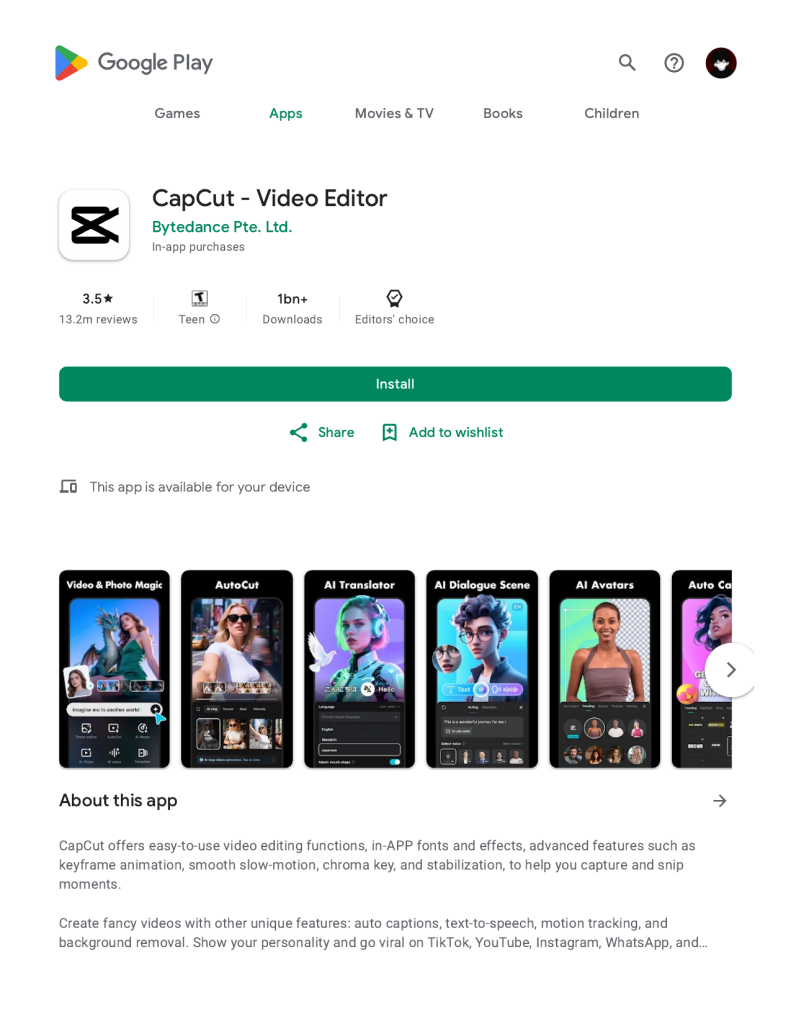
The free version is a full editor, not a cut-down teaser. Here is what I used without paying a penny:
- Full timeline editing. Trim, split, merge and reorder clips, adjust speed, reverse a clip, and add freeze frames. For a 30 to 60 second social video, this covers about 90 percent of the work.
- Filters, effects and transitions. A large set of filters, transitions and video effects is free. Free items have no badge, Pro items have a small crown or “Pro” label, so you always know where you stand.
- Text, stickers and overlays. Add text with fonts and animations, stickers, and picture-in-picture overlays. Auto captions, which turn speech into subtitles, are available free too, though some languages and styles are limited.
- Music and sound effects. CapCut includes a library of music tracks and sound effects, and plenty of them are free to use in your videos.
- Templates. Many templates are free — pick one, drop in your clips, and the edits and timing are done for you. Just check the template uses no Pro assets before you start, or you may be asked to upgrade at export time.
- Clean exports. Your finished video exports without a CapCut watermark, and you can remove the short CapCut ending clip with one tap in settings. That alone puts it ahead of several rival free editors.
What’s Locked Behind CapCut Pro
Pro is a subscription, and this is what it unlocks:
- 4K exports. Free exports stop at 1080p. For phone screens and social apps, 1080p looks fine, but if you want the sharpest possible quality, Pro is the only way.
- Premium effects, filters and transitions. The most polished effects — the ones you see in trending videos — are usually Pro.
- Premium templates and music. The best templates and a large part of the music library sit behind the paywall.
- AI tools. Features like background removal, auto cutout and the more advanced AI caption options are Pro features.
- 100 GB of cloud storage. Free accounts get only a small amount of cloud space, so your projects live mostly on your phone.
Free vs Pro at a Glance
| Feature | Free version | Pro |
|---|---|---|
| Timeline editing (trim, split, speed) | Yes | Yes |
| Filters, transitions and effects | Good selection | Full library |
| Auto captions | Basic | More languages and styles |
| Templates | Many free | All templates |
| Music library | Free tracks included | Full library |
| Export quality | Up to 1080p | Up to 4K |
| Watermark on exports | None | None |
| Cloud storage | Small amount | 100 GB |
| Price | Free | Around $10 a month |
The Watermark Question
This is the question I see most often, so let me be clear: the free version of CapCut does not stamp a watermark on your exported videos. That is true for videos you edit yourself on the timeline.
Two small catches are worth knowing. First, CapCut adds a short branded ending clip by default — but you can turn that off in settings, and it takes about five seconds. Second, if your project uses a Pro effect, filter or template, CapCut may ask you to upgrade before it lets you export. So if you want to stay free, stick to assets without the Pro badge.
The Catch: What Free Users Should Know
The free version is generous, but it is designed to make paying tempting, and a few things are worth knowing before you commit your time to it:
- The Pro badges are everywhere. It is easy to build a whole edit and only discover at the end that one transition is a Pro item. Check for badges as you go.
- Feature lists change. CapCut moves features between free and Pro more often than most apps. Something free today can become a Pro feature after an update, so do not plan a long project around one specific effect.
- Free cloud storage is small. If you edit on two devices, you will hit the limit quickly. Keeping projects on one phone avoids the problem.
- Some features need an account. A few features, including cloud backup and some templates, need you to sign in.
Is CapCut Pro Worth Paying For?
It depends entirely on how you use it:
Pay for Pro if you edit videos every day, if you need 4K exports for a YouTube channel, or if you earn money from your videos and the premium templates save you real time.
Stay free if you make the odd Reel, Short or family video, if 1080p looks fine on your phone, and if you are happy to work around the locked effects. For most casual users, the free version will not hold you back.
How I Tested the Free Version
I kept the test realistic. I edited on a mid-range Samsung phone, not a flagship, because that is what most of us actually own. I made three videos: a 30-second family clip, a 45-second Reel with music and captions, and a 60-second clip built from a template. All three exported at 1080p with no watermark, and the app never forced me to pay. The template video was the only one that needed a second attempt, because the first template I picked included a Pro transition. One safety note: while researching this I kept seeing “CapCut Pro unlocked” APK files online — do not install them, as a modified app from outside the Play Store can carry malware. If you are unsure how to tell a fake app file from a safe one, read my guide on spotting a fake or malicious APK first.
Frequently Asked Questions
Is CapCut really free?
Yes. The free version is a real, usable video editor, not a time-limited trial. You can download it from the Play Store, edit and export videos without paying. Pro is an optional subscription that unlocks extra effects, 4K export and more cloud storage.
Does the free version add a watermark to my videos?
No. Videos you edit and export in the free version have no CapCut watermark. CapCut does add a short branded ending clip by default, but you can switch that off in the app settings.
Can I use CapCut free videos on YouTube, TikTok or Instagram?
Yes. You can post your own edited videos on any platform. Just be careful with music: some tracks in the library are licensed for personal use, so if a video is for a business or a monetised channel, check the track’s licence or use royalty-free music you trust.
Bottom Line
CapCut’s free version is one of the most generous free editors on Android. You get full timeline editing, a solid set of effects, auto captions, templates and clean 1080p exports with no watermark. Pro is worth it only if you edit daily, need 4K, or want the premium templates and AI tools. For everyone else, the free version is genuinely enough — just watch out for the Pro badges, and never try to get Pro for free through a modded APK.
If you also edit photos on your phone, see my round-up of the best free photo editing apps for Android.
About HappyDroid — HappyDroid is a small, honest blog about Android phones. Every guide is tested on a real phone before it is published, and we only recommend official apps and safe methods. No modded apps, no shady downloads, no hype — just clear help that works.