
Every time you install a new app, your phone asks: “Allow this app to access your location?” “Allow access to your photos?” Most of us tap “Allow” without thinking, just to get past the screen. I did the same for years, until I checked my own phone and found a simple torch app with access to my contacts, and a photo editor that could read my messages. Neither needed those permissions. They just asked, and I had said yes.
Each permission is a door into a different part of your phone. Some doors are harmless. A few are genuinely dangerous in the wrong hands. In this guide I will explain which permissions you should worry about, which ones are mostly safe, and how to fix them in about two minutes.
Quick Facts
A permission is an app asking for access to one part of your phone, such as your camera, location, or contacts.
You can change any permission at any time — saying yes once does not lock you in.
Location, microphone, camera, contacts, and SMS are the permissions most often abused by bad apps.
“Allow all the time” location access is the riskiest setting — “While using the app” is usually enough.
A torch, calculator, or wallpaper app has no honest reason to ask for your contacts or messages.
What Are App Permissions, Really?
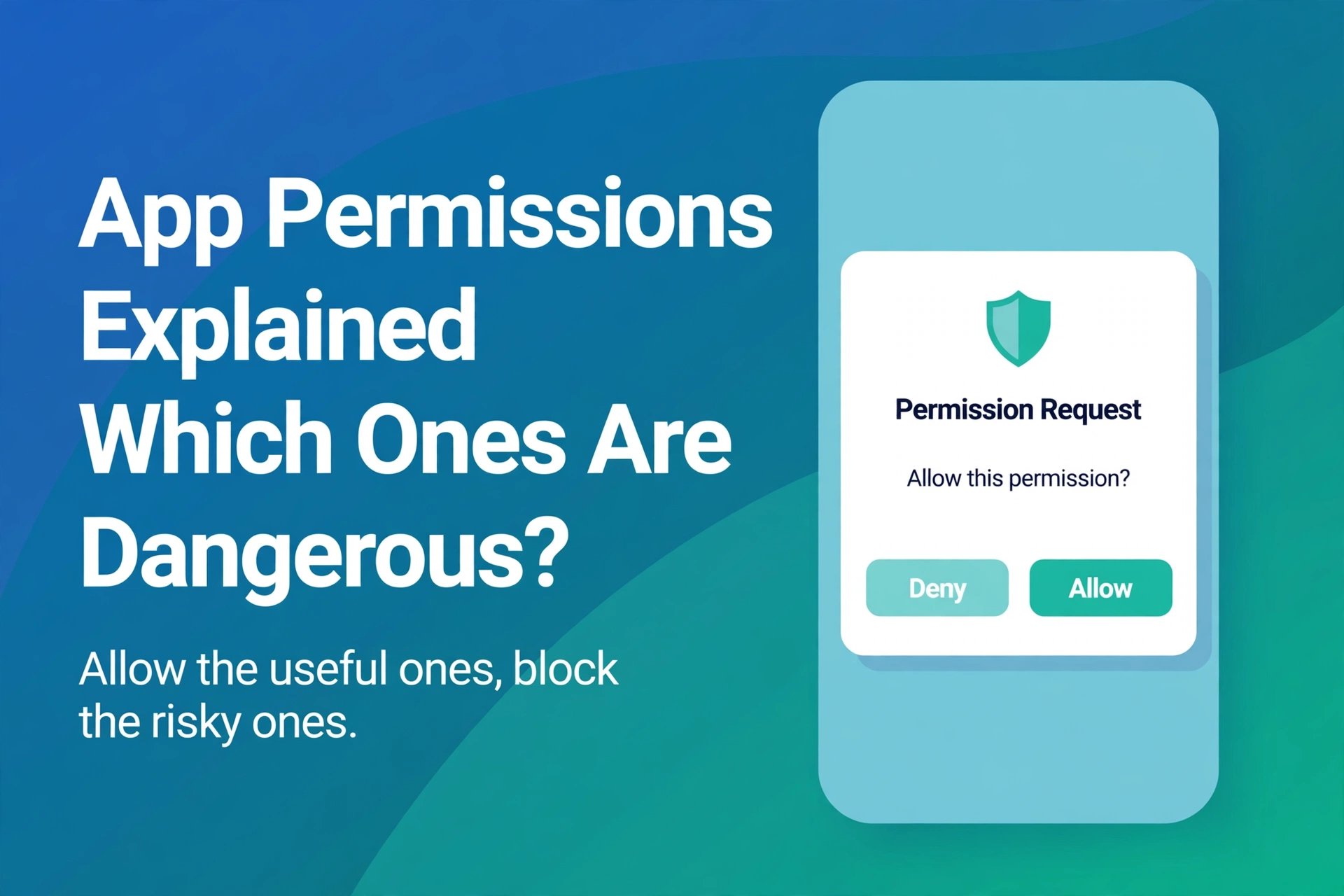
When you install an app from the Play Store, Android does not give it everything at once. The app must ask for each sensitive thing separately, at the moment it needs it. Open a camera app and it asks for camera access; open a maps app and it asks for your location. That pop-up with “Allow” and “Don’t allow” is the permission request.
Modern Android gives you four choices: “Allow all the time”, “Allow only while using the app”, “Ask every time”, and “Don’t allow”. That middle option — only while using the app — is the one I pick most often. It lets the app work while it is open, and stops it collecting data in the background. You can review and change every permission later, from one screen, as I show below.
The Dangerous Ones: Think Twice Before Allowing
Not all permissions carry the same risk. These matter most, because they can expose your private life if a bad app gets them.
1. Precise location, especially “all the time”. Your location reveals where you live, work, and go every day. A maps or delivery app genuinely needs it — but only while you are using it. A game, torch, or photo editor does not. “Allow all the time” location access is the single most suspicious request on Android, and you should almost always refuse it.
2. Microphone. With microphone access, an app can record audio around you. A voice recorder or video-call app needs it; a calculator does not. Be especially careful with apps that want the microphone in the background.
3. Camera. The same logic applies. A camera or video app needs it, obviously — but a free wallpaper app or QR scanner that wants your camera at all times is asking for more than its job requires.
4. Contacts. Your contacts list holds the names, numbers, and email addresses of your family and friends. Social and messaging apps use it to find people you know, which is fair if you trust the app. But a flashlight or cleaner app asking for your contacts is a clear warning sign — I explained how to spot these traps in my guide on how to spot a fake or malicious APK.
5. SMS and call logs. This is one of the most dangerous permissions of all. An app with SMS access can read your one-time passwords and verification codes — exactly what banking scams need. Only your messaging app and your bank’s own app should ever have this. If any other app asks, say no.
6. All files access. On newer Android versions, apps should ask only for the photos or files they need. If an app asks for access to all files, it can read documents, downloads, and anything else stored on your device. Only file managers and backup apps have a real reason for this.
7. Accessibility, device admin, and “draw over other apps”. These are special powers, not normal permissions. Accessibility access can read your screen and tap buttons for you; device admin can lock or wipe your phone; “draw over other apps” lets an app show windows on top of everything else — how fake virus warnings appear. Only well-known apps you trust should ever get these. I once had a phone showing fake “virus detected” warnings because of exactly this permission, as I described in my guide on how to check if your phone has a virus and remove it safely.
The Mostly Harmless Ones
Not every permission is a threat. These are low risk: notifications (alerts only, switchable later), vibration and alarms (clock and timer apps), Bluetooth and nearby devices (headphones, smartwatches, file sharing), and photos and videos with limited access — “selected photos only” is safest when an app just needs one picture.
The test is always the same: does this app need this permission to do its actual job? A photo editor needs your photos. It does not need your call logs.
How to Check and Fix Your Permissions in 2 Minutes
You do not need to check apps one by one — Android has a single screen that shows everything.
- Open Settings, then tap Privacy (on Samsung phones, under Security and privacy).
- Tap Permission manager to see the list: Location, Camera, Microphone, Contacts, and more.
- Tap a permission, for example Location, to see which apps have it and how — “all the time”, “only while using the app”, or “not allowed”.
- Tap any app that should not have it, and change it to Don’t allow or Ask every time.
- Repeat for Microphone, Camera, Contacts, and SMS.
To check a single app, go to Settings, then Apps, tap the app, then Permissions. Nothing breaks permanently — if an app genuinely needs a permission later, it will ask again.
The One-Second Rule I Use Before Tapping Allow
Whenever a pop-up appears, I ask one question: does this app need this to do its job? A maps app asking for location while I navigate — yes. A photo app asking for my contacts — no. A messaging app asking for the microphone for voice notes — yes. A game asking for my SMS messages — never.
If you are unsure, pick “Ask every time”. The app works for the moment, and you are not giving it permanent access. You can always allow more later; you cannot un-share data an app has already collected.
What to Do If an App Stops Working After You Deny a Permission
Sometimes a feature stops working after you deny a permission. That is easy to fix: open Settings, then Apps, tap the app, then Permissions, and set the one it needs to Allow only while using the app. If an app refuses to open at all unless you grant an unrelated permission — a torch that will not switch on without your contacts, for example — uninstall it. That behaviour itself tells you the app is not trustworthy.
FAQ
Is it safe to deny all permissions?
Mostly yes. Denying a permission never harms your phone. At worst, one feature of one app stops working, and you can switch it back on in seconds.
Why does a simple app ask for so many permissions?
Sometimes the developer bundled extra features, but often the app collects data to sell for advertising. An app that asks for far more than its job needs is worth deleting.
Can an app spy on me if I deny the permission?
No. If the permission is denied, Android blocks the access — which is why checking your permission manager every few months is one of the best privacy habits you can build.
Bottom Line
App permissions are not something to fear, but they are something to check. Location all the time, microphone, camera, contacts, and especially SMS access are the permissions that matter — allow them only when the app genuinely needs them, and prefer “only while using the app” over “all the time”. Two minutes in your permission manager today can stop a careless app from quietly collecting your private life tomorrow.
About HappyDroid — We publish step-by-step Android guides, troubleshooting fixes and honest app-safety advice. We never offer APK downloads; for your safety, install apps only from the Google Play Store or the maker’s official website.
4 thoughts on “App Permissions Explained: Which Ones Are Dangerous to Allow”