
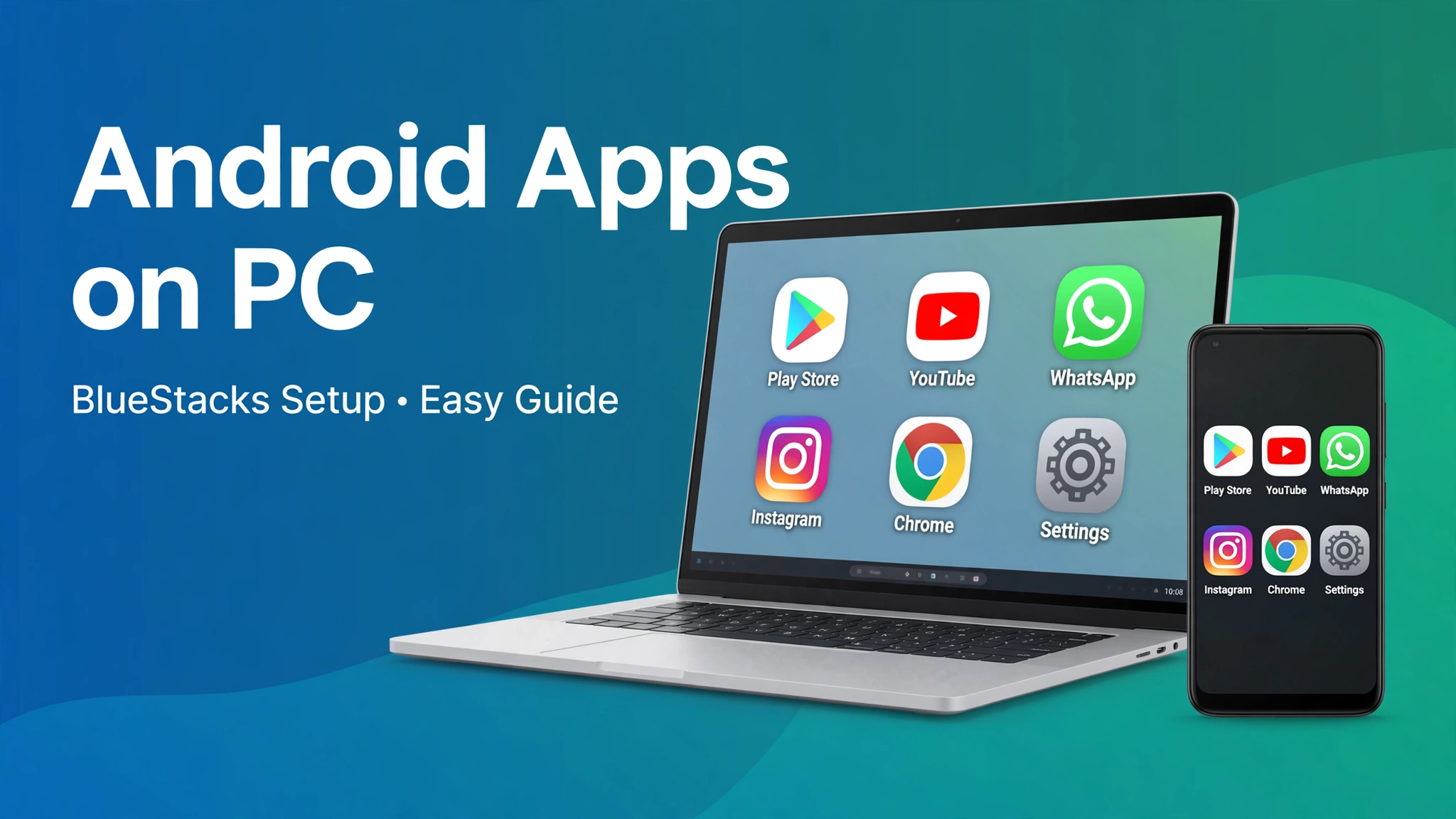
Playing mobile games or using Android apps on a bigger screen has become common and easy with the help of an Android emulator like BlueStacks. In this guide, I show you how to install Android apps on your PC using BlueStacks — using the Google Play Store, the only method I use and recommend.
Quick Facts
Platform: Windows PC with BlueStacks
Cost: Free
Setup time: About 10 minutes
Apps: From the Play Store inside BlueStacks
Download and Install BlueStacks First
Go to the official BlueStacks website and download the BlueStacks installer for your PC. Make sure you download it from an official source instead of using a random website or link. Run the installer on your Windows PC and let it finish setting up — this can take a few minutes, depending on your computer’s processor.
Set up Your Google Account
Once BlueStacks is installed, open it on your PC. It will ask you to sign in with a Google account, just like a real Android device. This step is important: you need it to access the Google Play Store inside BlueStacks, and many apps require a Google account to run.
Install Apps from the Play Store
Once you are signed in, install apps from the Google Play Store inside BlueStacks, exactly as you would on a phone. There is no need for any other method — the Play Store keeps your apps updated and protected by Google Play Protect.
Follow these steps — they are the only method I use to install apps on BlueStacks:
- Open the Google Play Store — Open BlueStacks on your PC, then open the Play Store app inside it.
- Sign in with your Google account — If BlueStacks asks you to sign in again, use the same Google account you used when you set it up.
- Search and install — Search for the app or game you want, tap Install, and wait for the download to finish.
- Open it from the home screen — Once it is installed, open the app from its icon on the BlueStacks home screen, just like on a phone.
If an app is not listed in the Play Store inside BlueStacks, it is not available for your PC through this method. Do not go looking for it elsewhere — check whether the app is available on your phone instead, or look for an official alternative from the same developer.
What to Do If an Install Fails
Sometimes, an app will not install from the Play Store and shows an unexpected error. This usually happens when the app is not compatible with your PC, when BlueStacks is out of storage, or when your internet connection drops during the download. Free up space, check your connection, restart BlueStacks and try again — and make sure BlueStacks is updated to the latest version.
Running the App after Install
Once the app or game is installed, open it from its icon on the BlueStacks home screen, just like on a phone. On the home screen, you can adjust the display settings, resize the window and take screenshots, just as you would on a PC.
If BlueStacks Won’t Install or Run
- Check your PC meets the minimum requirements: Windows 10 or 11, at least 4 GB of RAM and 5 GB of free disk space.
- If the emulator is very slow or fails to start, enable Virtualization (VT-x / AMD-V) in your BIOS or UEFI settings.
- Update your graphics drivers to the latest version from the manufacturer’s website.
- Temporarily check that your antivirus is not blocking the installer, and download BlueStacks only from bluestacks.com.
Frequently Asked Questions
Is BlueStacks safe to use?
Yes, the official BlueStacks from bluestacks.com is a legitimate, widely used Android emulator. Download it only from the official site — copies from other download portals often bundle unwanted software.
Can I use my phone apps’ data inside BlueStacks?
If the app syncs to your account (Google, Facebook or the developer’s account), signing in brings your data over. Local-only data stays on the phone.
Final Thoughts
Installing Android apps on a PC with BlueStacks is simple once the emulator is set up: download BlueStacks from its official website, sign in with your Google account, and install apps from the Play Store, just as you would on a phone. That is the safest way to run Android apps on your PC — and it keeps your apps updated and protected by Google Play Protect.
About HappyDroid — We publish step-by-step Android guides, troubleshooting fixes and honest app-safety advice. We never offer APK downloads; for your safety, install apps only from the Google Play Store or the maker’s official website.