
You tap Install, the button changes to “Download pending” — and then nothing happens. No progress bar, no error, just a stuck app while your Wi-Fi works fine. I have hit this on my own Samsung and Pixel phones more than once, and it is almost never a broken phone. It is usually a stuck queue, a full cache, or one quiet setting blocking the download. Here are the nine fixes that worked for me.
Quick Facts
- “Download pending” means the Play Store has queued your app but cannot start the download yet.
- The usual causes are a stuck update queue, low storage, or a corrupted Play Store cache.
- In my own testing, clearing the Play Store cache fixed the problem in about half of all cases.
- None of these fixes needs a factory reset, and none of them touches your photos, chats, or files.
- Working through the list in order takes about 10 to 15 minutes.
1. Check the obvious first: Wi-Fi, storage, and the queue
First, rule out the three most common causes.
- Open your browser and load any web page. If it loads slowly or not at all, the problem is your connection, not the Play Store. Switch between Wi-Fi and mobile data and try again.
- Check free storage in Settings, then Storage. Android needs more room than the app’s listed size, because the download, the install file, and the installed app all need space at once. Under 1 GB free can freeze a download.
- Open the Play Store, tap your profile picture, then Manage apps and device. If several apps are updating at once, your new download is simply waiting in line. Pause or cancel the updates you do not need, and your download should start within a minute.
2. Cancel the stuck download and try again
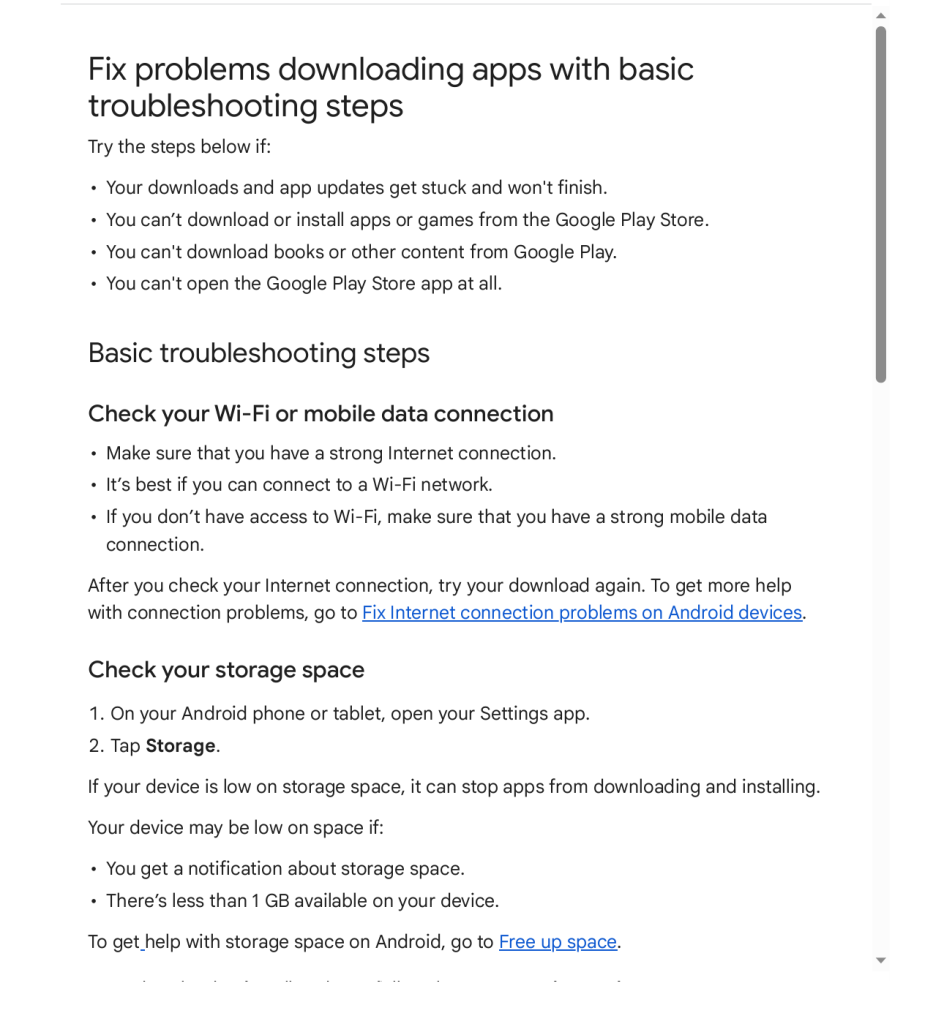
Sometimes the download itself is the problem, not your phone. A single failed attempt can sit in the queue forever. In the Play Store, go to your profile picture, then Manage apps and device, then Manage, find the stuck app, and cancel it — or long-press the app icon on your home screen and cancel the pending install from there. Wait ten seconds, then tap Install again. This alone fixed the issue for me twice.
3. Clear the Play Store cache (and data if needed)
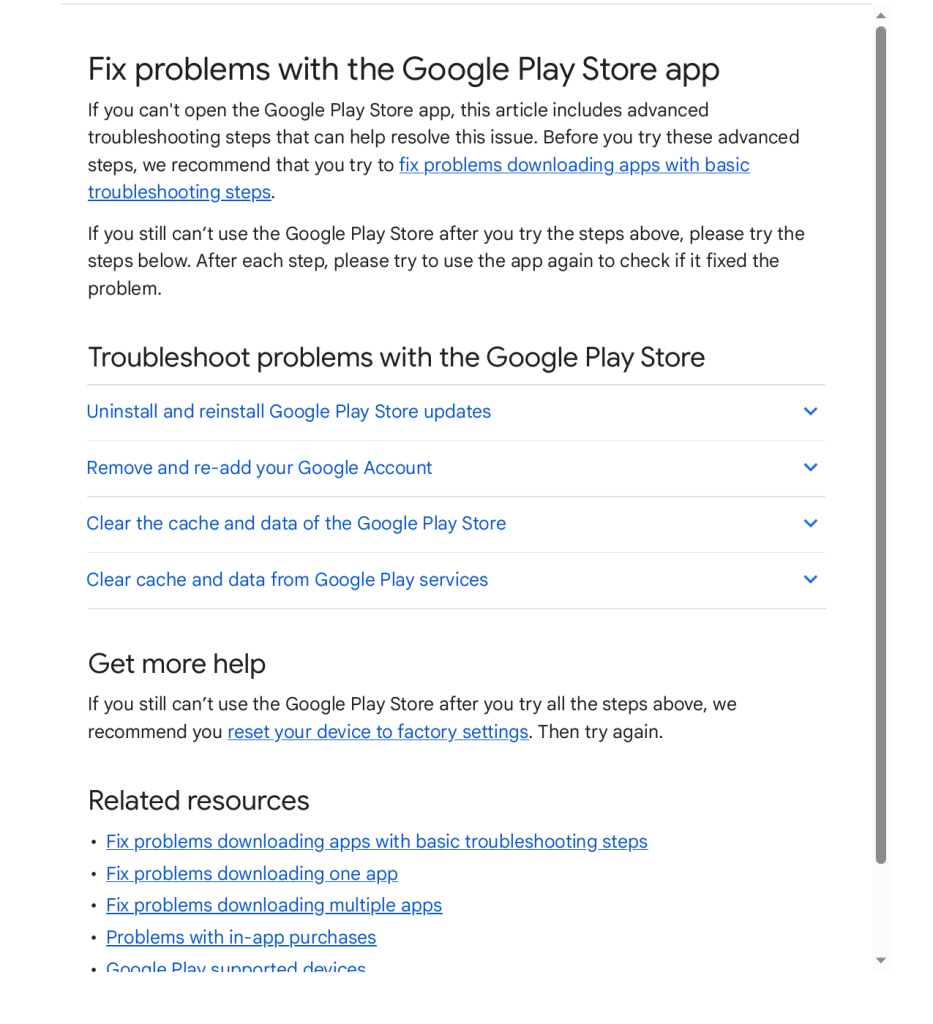
This is the fix I reach for most often. The Play Store keeps temporary files that can get corrupted and silently block new downloads.
- Go to Settings, then Apps, then See all apps, then Google Play Store.
- Tap Storage and cache, then Clear cache. Do not tap Clear storage yet.
- Go back and try your download. If it starts, you are done.
- If it is still stuck, repeat the steps but tap Clear storage (or Clear data) this time. This signs you out and resets the store’s settings, but deletes no installed app or purchase. Sign back in and try again.
- Do the same for Google Play Services, which handles downloads in the background: Settings, then Apps, then Google Play Services, then Storage and cache, then Clear cache.
4. Restart your phone
It sounds too simple, which is why people skip it. A restart clears stuck background processes and temporary glitches, including the ones that freeze the Play Store queue. Hold the power button, tap Restart, and try the download again once the phone is back up.
5. Check your date and time settings
This one surprises people. The Play Store checks security certificates when it connects to Google’s servers, and if your phone’s date or time is wrong, those checks fail and downloads stall with no clear error. Go to Settings, then System, then Date and time, and turn on “Use network-provided time” and “Use network-provided time zone”. If they were already on, turn them off, wait a few seconds, and turn them back on. Then try the download again.
6. Turn off your VPN and check Data Saver
VPNs and data-saving features sit between your phone and Google’s servers, and either can slow or block a download.
- If you use a VPN, disconnect it and try the download. If it works, the VPN server was the problem — try a different server or leave the VPN off while you install apps.
- Go to Settings, then Network and internet, then Data Saver, and turn it off for the test. It can restrict background data for the Play Store.
- Check the Play Store’s own setting: profile picture, then Settings, then Network preferences, then “App download preference”. If it is set to “Over Wi-Fi only” and you are on mobile data, every download will sit at pending. Change it to “Over any network”.
7. Remove your Google account and add it again
If the Play Store still refuses to start downloads, your account’s connection to Google’s servers may be stale. Removing and re-adding it refreshes the link.
- Go to Settings, then Passwords and accounts (on some phones this is just Accounts), then tap your Google account.
- Tap Remove account and confirm. Your emails, contacts, and photos live in your Google account online, so they return when you sign in again — but check they are synced first.
- Restart your phone, go back and add the account again, give it a few minutes to sync, then try the download. This fixes the stubborn cases that survive a cache clear.
8. Update Android and the Play Store itself
An outdated Play Store or system version can cause pending downloads, especially after a big Android update. To update the Play Store, open it, tap your profile picture, then Settings, then About, then “Update Play Store”. To update Android, go to Settings, then System, then System update, and install anything waiting there. After either update, restart your phone once and try the download again.
9. Free up space — the hidden cause
Low storage is the quietest cause — the Play Store rarely tells you space is the problem. It just waits.
- Delete apps you have not opened in months. A few large games can free several gigabytes in minutes.
- Clear the cache of heavy apps like your browser or social media apps in Settings, then Apps, then Storage and cache.
- Move photos and videos to a cloud backup or your computer, and delete the local copies once the backup is confirmed.
- Keep at least 2 GB free at all times so the Play Store has room to download, unpack, and install. If your phone keeps filling up, my guide on freeing up storage and RAM covers the same habits in more detail.
If you want a broader speed-up after fixing this, the steps in my guide to making your phone faster cover the same clean-up habits in more detail.
FAQ
Why does my download stay pending only on mobile data?
Your Play Store is probably set to download apps over Wi-Fi only. Open it, tap your profile picture, then Settings, then Network preferences, then “App download preference”, and change it to “Over any network”. Large apps will then use your mobile data.
Will clearing Play Store data delete my apps?
No. Clearing the Play Store’s data only resets the store app itself — its cache, settings, and sign-in. Your installed apps, purchases, and app data all stay where they are. You will just need to sign in to the Play Store again.
How long should a download stay pending before I worry?
A few minutes on a slow connection is normal, especially for a large app. But if a small app has been stuck for more than 15 to 30 minutes while the rest of your phone works fine, something is blocking it — start with the cache clear in step 3.
Bottom Line
A pending download is annoying, but it is almost always a small problem: a stuck queue, a corrupted cache, a wrong setting, or low storage. Start with the queue and the cache clear, and most people will be downloading again within five minutes. Work through the rest only if you need to, and skip the factory reset — I have never needed one to fix this.
About HappyDroid — HappyDroid is an independent Android guide blog. Every guide is tested on a real phone before it is published, and we only recommend official methods — no modded apps, no cracked downloads, no shortcuts that put your phone at risk. If this guide helped, share it with someone whose phone could use the same ten minutes.