
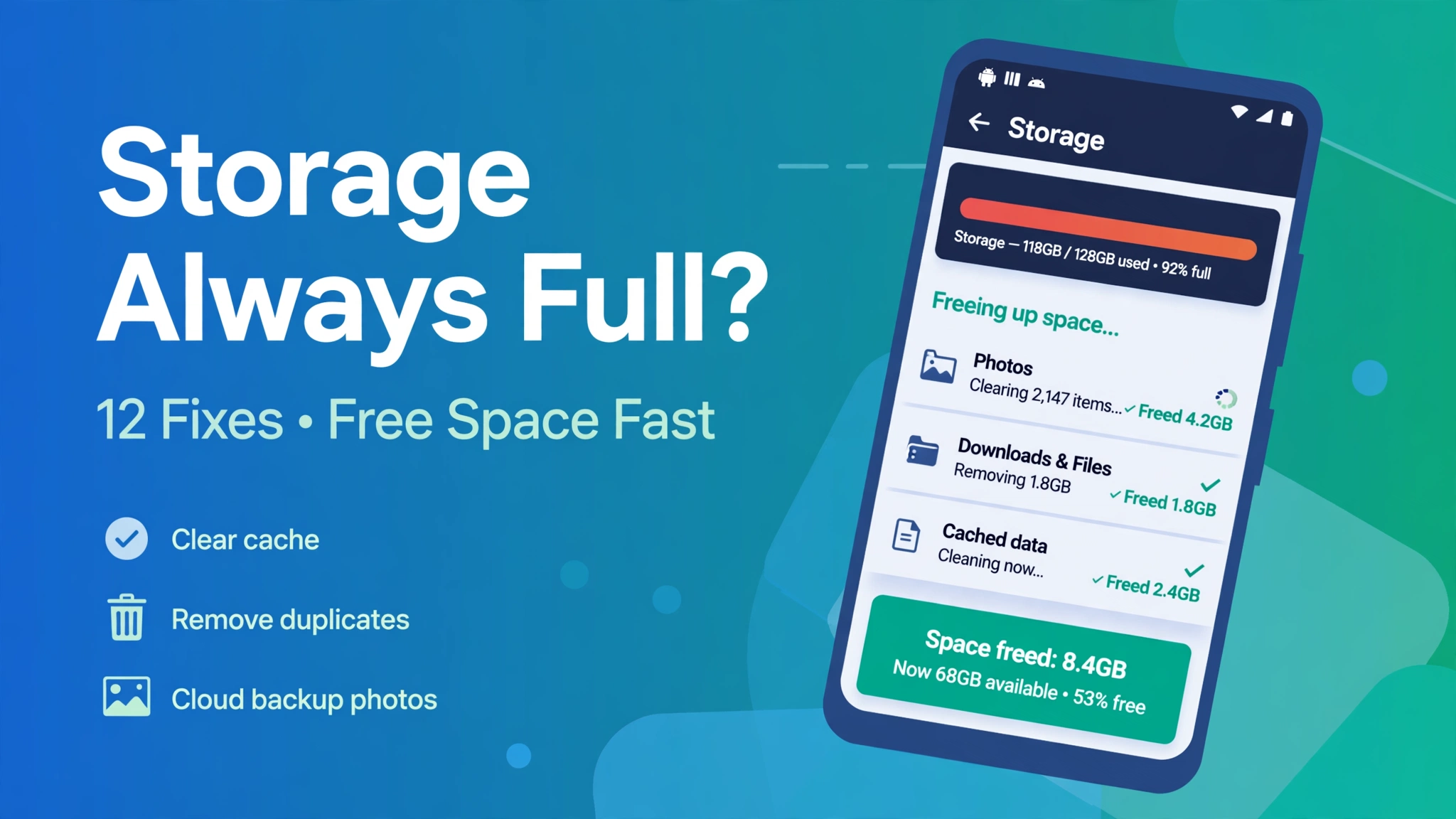
Few phone problems are as annoying as the ‘storage almost full’ warning — it blocks photos, stops app updates and slows everything down. The good news: on most phones, several gigabytes are hiding in places you have never looked. Work through these fixes in order; most people free up serious space in the first three.
Quick Facts
Fixes inside: 12
Time needed: 10–20 minutes
Data loss: None if you follow the steps
Works on: Samsung, Xiaomi, Infinix, Tecno and more
First, See What Is Actually Eating Your Storage
Open Settings > Storage (on Samsung: Settings > Battery and device care > Storage). Android breaks usage into Apps, Images, Videos, Audio, System and Other. Note the biggest category — that is where your space went, and it tells you which fixes below matter most. System taking 10–20 GB is normal; ‘Other’ growing endlessly usually means app data and cache.
The 12 Fixes
1. Clear App Cache (Safe and Instant)
Settings > Apps > see all apps, sort by size, open the biggest ones (browsers, social apps) > Storage > Clear cache. Cache is temporary data; clearing it never deletes your photos, accounts or settings. Social and video apps often hold 1–3 GB each.
2. Clean WhatsApp and Telegram Media
Chat apps silently store every photo, video and voice note. In WhatsApp: Settings > Storage and data > Manage storage — open the largest chats and delete forwarded videos first. In Telegram, set a cache limit in Settings > Data and Storage.
3. Empty the Downloads Folder
Open the Files app > Downloads. Old APKs, PDFs, zips and duplicate songs pile up here for years. Delete anything you no longer need — most people find several hundred MB instantly.
4. Turn On Google Photos Backup, Then ‘Free Up Space’
Back up photos and videos to Google Photos, then use its ‘Free up space’ option (profile icon > Free up space). Your media stays safe in the cloud and the local copies are removed — often the single biggest win, frequently 5–20 GB. Only use it after confirming the backup has fully completed — open Google Photos and check that your newest photos appear in the cloud. Otherwise, you could lose local copies that were never backed up.
5. Delete Offline Video and Music You Finished
YouTube, Netflix and Spotify downloads linger long after you watched them. Open each app’s Downloads section and remove finished content.
6. Uninstall Apps You Have Not Opened in Months
Settings > Apps — anything unused for 3+ months is a candidate. Games are the worst offenders at 2–5 GB each. You can always reinstall later; your cloud saves stay with your account. Not sure how to remove an app fully? See our complete uninstall guide.
7. Let Android Archive Rarely Used Apps
On many phones: Play Store > profile icon > Settings > General > ‘Automatically archive apps’. Archived apps keep your data but give back most of their storage until you tap them again.
8. Move Media to an SD Card or Computer
If your phone supports microSD, move photos/videos in the Files app. Otherwise copy them to a computer over USB once — the cheapest ‘storage upgrade’ there is.
9. Clear the ‘Other’ Bloat: Restart and Update
A surprising amount of ‘Other’ is temporary system files. Restart the phone, install pending Android updates, then check Storage again in a day.
10. Use Files by Google’s Clean Tab
Google’s own Files app finds junk, duplicates, large files and unused apps safely — no shady ‘cleaner’ apps needed. Avoid third-party booster apps; most only add ads.
11. Reduce WhatsApp Auto-Download
WhatsApp > Settings > Storage and data — set media auto-download off for mobile data and choose wisely for Wi-Fi and groups, so tomorrow’s clutter never arrives.
12. Last Resort: Back Up and Factory Reset
If storage still misbehaves after everything above, back up fully (Settings > System > Backup), note your important logins, and reset. A clean phone with restored data often reclaims several ‘lost’ gigabytes. Follow our update-without-losing-data guide for safe backup habits first.
How Much Free Space Should You Keep?
Keep at least 10–15% of storage free. Below that, Android slows down, updates fail — including the ‘app not installed’ error — and cameras can refuse to save. Treat 5 GB free as your personal red line on a 64 GB phone.
Frequently Asked Questions
Why does my storage fill up again so fast?
Usually chat-media auto-downloads, video app caches and camera videos. Fixes 2, 4 and 11 together stop most regrowth.
Is it safe to clear cache?
Yes. Cache is rebuilt automatically. Clearing DATA is the dangerous button — it resets the app like new.
Do cleaner apps work?
Mostly no. The built-in tools and Files by Google do the same job without ads, fake warnings or risky permissions.
The Bottom Line
Storage problems are rarely about needing a new phone — they are about invisible clutter. Find the biggest category, clear caches, tame chat media, move photos to the cloud, and keep 10–15% free. Do that once a month and the warning never comes back.
About HappyDroid — We publish step-by-step Android guides, troubleshooting fixes and honest app-safety advice. We never offer APK downloads; for your safety, install apps only from the Google Play Store or the maker’s official website.
2 thoughts on “Android Phone Storage Always Full? 12 Fixes That Actually Work”